L3 Interfaces in L2 MPLS Tunnels on Huawei NE Router (How to Configure MPLS with IP on Huawei)
Learn how to configure L3 interfaces in L2 MPLS tunnels on Huawei Router.
How to Set Up Winbox on macOS Catalina

Here’s how to fix the Winbox issue on macOS Catalina
Netflow Configuration on Cisco Routers

Learn how to configure Netflow on your Cisco ASR9k or Cisco 100x Line (1002,1004 or 1008) router
CDN Dashboard: Google, Facebook, Netflix and Akamai. Made4Flow News – 08/23/2019
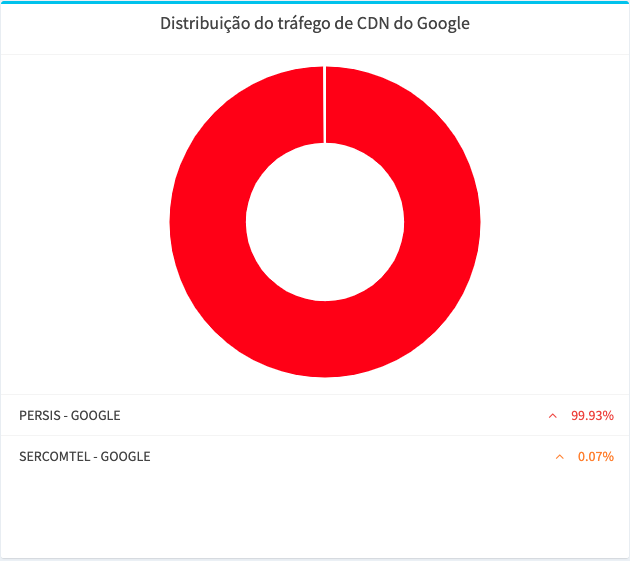
Check out what’s new at Made4Flow – CDN Dashboard: Google, Facebook, Netflix and Akamai. Made4Flow News – 08/23/2019
Application Graphics, News and Updates – Made4Flow – 08/13/2019

Application Graphics, News and Updates – Made4Flow – 08/13/2019
Netflow Configuration on Huawei Routers

Hello Today we’ll show you how to configure your Huawei router to export NetFlow (IP NetStream). Here we have the Network topology and the Netflow Server information These are the steps required to configure the Huawei Router to export Netflow v5/v9 via Netstream IP Let’s go to the step-by-step configuration 1.Configuring the NTP Server It is important to configure an NTP server because flow data uses a timestamp based on the router’s time. If the router’s time differs from the server’s, the data will not match the time, resulting in a discrepancy in the information. It is important that you configure at least 2 NTP servers and also your router’s timezone. ntp-service server disable ntp-service ipv6 server disable ntp-service unicast-peer 200.160.0.8ntp-service unicast-peer 200.189.40.8 2. Configure the slot to export information On Huawei routers, you need to configure the slot to export information. To do this, use the following commands: slot 3 ip netstream sampler to slot self ipv6 netstream sampler to slot self 3. Configuring Netstream IP with Netflow Server On Huawei routers you must configure the netstream IP to say which server will receive the Netflow data, which sampling (sampler), which Netflow version and Netflow source IP. For configuration use the following commands: ip netstream timeout active 1 ip netstream timeout inactive 15 ip netstream export version 9 ip netstream export index-switch 32 ip netstream export template timeout-rate 1 ip netstream sampler fix-packets 500 inbound ip netstream sampler fix-packets 500 outbound ip netstream export source 192.168.210.49 ip netstream export host 192.168.210.47 2055 ip netstream export template option sampler ip netstream export template option timeout-rate 1 ip netstream as-mode 32 ipv6 netstream as-mode 32 ipv6 netstream timeout active 1 ipv6 netstream timeout inactive 15 ipv6 netstream export version 9 ipv6 netstream export index-switch 32 ipv6 netstream export template timeout-rate 1 ipv6 netstream sampler fix-packets 500 inbound ipv6 netstream sampler fix-packets 500 outbound ipv6 netstream export source 192.168.210.49 IPv6 netstream export host 192.168.210.47 2055 IPv6 netstream export template option sampler IPv6 netstream export template option timeout-rate 1 IPv6 netstream as-mode 32 4. Configure the interface to enable Netflow on the interface Finally, we need to enable NetFlow on the interfaces that will export it. To do this, use the following commands on each interface: ip netstream inbound ipv6 netstream inbound Below is the complete configuration of the Router: ntp-service server disablentp-service ipv6 server disablentp-service unicast-peer 200.160.0.8ntp-service unicast-peer 200.189.40.8 slot 3 ip netstream sampler to slot self ipv6 netstream sampler to slot self ip netstream timeout active 1ip netstream timeout inactive 15ip netstream export version 9ip netstream export index-switch 32ip netstream export template timeout-rate 1ip netstream sampler fix-packets 500 inboundip netstream sampler fix-packets 500 outboundip netstream export source 192.168.210.49ip netstream export host 192.168.210.47 2055ip netstream export template option sampler ip netstream export template option timeout-rate 1 ip netstream as-mode 32 ipv6 netstream as-mode 32ipv6 netstream timeout active 1ipv6 netstream timeout inactive 15ipv6 netstream export version 9ipv6 netstream export index-switch 32ipv6 netstream export template timeout-rate 1ipv6 netstream sampler fix-packets 500 inboundipv6 netstream sampler fix-packets 500 outboundipv6 netstream export source 192.168.210.49IPv6 netstream export host 192.168.210.47 2055IPv6 netstream export template option samplerIPv6 netstream export template option timeout-rate 1IPv6 netstream as-mode 32 interface eth-trunk0.100 (example interface)ip netstream inboundipv6 netstream inbound If you have an NE40, here is a sample configuration: ntp-service server disablentp-service ipv6 server disablentp-service unicast-peer 200.160.0.8ntp-service unicast-peer 200.189.40.8 slot 3 ip netstream sampler to slot self ipv6 netstream sampler to slot self ip netstream as-mode 32ip netstream timeout inactive 15ip netstream export version 9ip netstream export index-switch 32ip netstream export template timeout-rate 1ip netstream sampler fix-packets 500 inboundip netstream sampler fix-packets 500 outboundip netstream export source 192.168.210.49ip netstream export host 192.168.210.47 2055ip netstream export template option samplerip netstream export template option timeout-rate 1 #ipv6 netstream as-mode 32ipv6 netstream timeout inactive 15ipv6 netstream export version 9ipv6 netstream export index-switch 32ipv6 netstream export template timeout-rate 1ipv6 netstream sampler fix-packets 500 inboundipv6 netstream sampler fix-packets 500 outboundipv6 netstream export source 192.168.210.49ipv6 netstream export host 192.168.210.47 2055ipv6 netstream export template option sampleripv6 netstream export template option timeout-rate 1 On all interfaces, add ` ` `ip netstream inbound` ` ` `ipv6 netstream inbound` If you have a router that isn’t listed here, send us a message on WhatsApp and we’ll send you the settings. I hope I have helped you and until next time. Big hug.
Check out Made4it’s interview for RTI Magazine

Check out our interview for RTI Magazine: Made4it offers a traffic analysis solution Made4it, a Brazilian company headquartered in Apucarana, PR, provides the market with Made4Flow, a network traffic analysis software solution designed for Internet service providers. The product uses information sent via the NetFlow protocol from routers, analyzing parameters such as IP address, port, and source and destination ASN. It is also possible to monitor a specific interface, tracking where the data is being distributed. To assist with Made4Flow’s tasks, the company launched Made4Graph in March. The application manages PPPoE end-users through graphs that show how bandwidth is being used. According to Made4it’s managing partner, Guilherme Ganascim, Made4Graph was developed to address a gap in the market. “As providers begin to grow, companies end up turning to solutions from major manufacturers, a process that can lead to a loss of customer information regarding traffic and connection visibility. To avoid these problems, we developed Made4Graph , which is compatible with routers from brands such as Huawei, Cisco, Juniper, and Mikrotik,” he explains. In addition to Made4Flow and Made4Graph, Made4it offers ICT consulting services covering the technical aspects of an Internet service provider, such as router configurations using BGP; connection activation with carriers; MPLS network design and deployment; configuration and deployment of DNS servers, among other services. With 25 employees, the company currently serves more than 70 providers throughout Brazil. Among its clients are Agility and Tecnet, both from Ceará; Persis Telecom and Delta Telecom, both from Paraná; and Webby Telecom, in São Paulo. Here is the link to view the magazine; see pages 19 and 20: http://www.arandanet.com.br/assets/revistas/rti/2019/abril/index.php?
New Dashboard – CDN Traffic
Hello, Take a look at our new dashboard showing the distribution of CDN traffic here: With this new dashboard, it’s very easy to identify your traffic to the major CDNs: Google, Facebook, Netflix, and Akamai. If you’re interested, please contact us and try it out for 15 days at no cost. Thank you, and see you next time.
Netflow Configuration on Juniper Routers
Hello Today we’ll show you how to configure your Juniper router to export NetFlow (jFlow). At the end of the article, you’ll find the configuration using IPFIX (NetFlow v10). Here we have the Network topology and the Netflow Server information These are the steps needed to configure a Juniper Router to export Netflow v5 Configure the NTP Server Configuring Forwarding Options with Sampling Rate Configure the Host that will receive the Flows coming from the Router Configure the interface to enable Netflow on the interface Let’s go to the step-by-step configuration Configure the NTP Server It is important to configure an NTP Server because the Flows data uses timestamp according to the router’s time. If the router has a different time than the server, the data will not agree with the time, generating a mismatch of information. It is important that you configure at least 2 NTP servers and also your router’s timezone. ## Using the a.ntp.br and b.ntp.br Serversset system ntp server 200.160.0.8set system ntp server 200.189.40.8 ## Setting the Time Zoneset system time-zone America/Sao_Paulo## Standard way to view the Juniper configurationguilherme@vMX-BGP> show configuration systemsystem { time-zone America/Sao_Paulo; ntp { server 200.160.0.8; server 200.189.40.8; }} 2. Configure Forwarding Options with the Sampling Rate The sampling rate is used to prevent CPU overload in your Routing Engine; it creates a sample of the traffic and exports it, allowing the NetFlow system to receive the data and apply a multiplication factor so that the data reflects actual numbers. To configure this, use the commands. The ideal rate value depends on how much traffic you use; a good tip is to use values above 200 and monitor your router’s CPU usage. ## Setting the Rate value to 500set forwarding-options sampling input rate 500## How to view Juniper settings without “display-set”forwarding-options { sampling { input { rate 500; } 3. Configure the Host that will receive the Flows coming from the Router To configure your router to export NetFlow, you must specify the IP address of the server that will receive the flows and the UDP port on which it will receive this traffic. To do this, use the following commands: ## Forwarding to IP address 192.168.210.47 on port 2055 and using NetFlow version 5set forwarding-options sampling family inet output flow-server 192.168.210.47 port 2055 set forwarding-options sampling family inet output flow-server 192.168.210.47 version 5## Viewing the “show” output without the “display” option setguilherme@vMX-BGP> show configuration forwarding-options sampling { family inet { output { flow-server 192.168.210.47 { port 2055; version 5; } } } } 4. Configure the interface to enable Netflow on the interface After configuring the sampling rate and the flow server, you still need to enable NetFlow on the interfaces where it will generate data. Keep in mind that you must configure this command within each unit. To do this, configure the interfaces within each unit using the following command: ### Apply the “sampling input” command: ` ` set interfaces ge-0/0/1 unit 0 family inet sampling input The complete configuration looks like this: guilherme@vMX-BGP> show configuration | display set set system time-zone America/Sao_Paulo set system ntp server 200.160.0.8 set system ntp server 200.189.40.8 set interfaces ge-0/0/0 description “Talk to Netflow set interfaces ge-0/0/0 unit 0 family inet address 192.168.210.49/24 set interfaces ge-0/0/1 description “WAN INTERFACE – IP TRANSIT set interfaces ge-0/0/1 unit 0 family inet sampling input set interfaces ge-0/0/1 unit 0 family inet address 200.200.200.1/30 set forwarding-options sampling input rate 500 set forwarding-options sampling family inet output flow-server 192.168.210.47 port 2055 set forwarding-options sampling family inet output flow-server 192.168.210.47 version 5## Juniper Show Shapeguilherme@vMX-BGP> show configuration Last commit: 2019-01-30 13:30:01 BRST by guilherme version 17.1R2.7; system { host-name vMX-BGP; time-zone America/Sao_Paulo; ntp { server 200.160.0.8; server 200.189.40.8; } } interfaces { ge-0/0/0 { description “Talk to Netflow”; unit 0 { family inet { address 192.168.210.49/24; } } } ge-0/0/1 { description “WAN INTERFACE – IP TRANSIT”; unit 0 { family inet { sampling { input; } address 200.200.200.1/30; } } } } forwarding-options { sampling { input { rate 500; } family inet { output { flow-server 192.168.210.47 { port 2055; version 5; } } } } } To make it even easier we have the video demonstrating the configuration of each command applied in this tutorial As a bonus, we’ll post the IPFIX configurations for a few types of routers Juniper MX204 For routers such as the MX204, you can use IPFIX (NetFlow v10). To configure this on the MX204, use the commands and modify the Flow-server and source address IPs. set services flow-monitoring version-ipfix template MADE4FLOW flow-active-timeout 60 set services flow-monitoring version-ipfix template MADE4FLOW flow-inactive-timeout 15 set services flow-monitoring version-ipfix template MADE4FLOW template-refresh-rate seconds 30 set services flow-monitoring version-ipfix template MADE4FLOW option-refresh-rate seconds 30 set services flow-monitoring version-ipfix template MADE4FLOW ipv4-template set services flow-monitoring version-ipfix template MADE4FLOW-v6 flow-active-timeout 60 set services flow-monitoring version-ipfix template MADE4FLOW-v6 flow-inactive-timeout 15 set services flow-monitoring version-ipfix template MADE4FLOW-v6 template-refresh-rate seconds 30 set services flow-monitoring version-ipfix template MADE4FLOW-v6 option-refresh-rate seconds 30 set services flow-monitoring version-ipfix template MADE4FLOW-v6 ipv6-template set chassis fpc 0 sampling-instance MADE4FLOW set chassis fpc 0 inline-services flow-table-size ipv4-flow-table-size 10 set chassis fpc 0 inline-services flow-table-size ipv6-flow-table-size 5 set forwarding-options sampling instance MADE4FLOW input rate 1000 set forwarding-options sampling instance MADE4FLOW input run-length 0 set forwarding-options sampling instance MADE4FLOW input max-packets-per-second 10000 set forwarding-options sampling instance MADE4FLOW family inet output flow-inactive-timeout 15 set forwarding-options sampling instance MADE4FLOW family inet output flow-active-timeout 60 set forwarding-options sampling instance MADE4FLOW family inet output flow-server 10.1.1.1 port 2055 set forwarding-options sampling instance MADE4FLOW family inet output flow-server 10.1.1.1 autonomous-system-type origin set forwarding-options sampling instance MADE4FLOW family inet output flow-server 10.1.1.1 version-ipfix template MADE4FLOW set forwarding-options sampling instance MADE4FLOW family inet output inline-jflow source-address 10.1.1.2 set forwarding-options sampling instance MADE4FLOW family inet6 output flow-inactive-timeout 15 set forwarding-options sampling instance MADE4FLOW family inet6 output flow-active-timeout 60 set forwarding-options sampling instance MADE4FLOW family inet6 output flow-server 10.1.1.1 port 2055 set forwarding-options sampling instance MADE4FLOW family inet6 output flow-server 10.1.1.1 autonomous-system-type origin set forwarding-options sampling instance MADE4FLOW family inet6
Netflow Configuration on Mikrotik RouterOS Routers
Netflow Configuration on Mikrotik Routers