


Now that you know what a BGP blackhole is (if you don’t already know, check out our article on RTBH – Blackhole). Now it’s time to configure it and be able to protect yourself from DDoS attacks.
To summarize the Blackhole, it is a technique of sending a route to the “black hole” or simply making the router discard packets directed to that IP. With the blackhole you can also announce these attacked IPs to your suppliers/upstreams and thus stop the attacks.
Now that I know what it is, the question is: how do I set up Blackhole on my router? In today’s article, we’ll show you how to configure Blackhole on Huawei routers.
To do the Blackhole manually we have some steps that are:
- Identify the attacked IP
- Create route to blackhole
- Advertise this blackhole route via BGP to your carriers/upstreams
You can automate all of this with Made4Flow, already closing a direct session and not having to do manual work.
If you want to know how to automate everything with Made4Flow, check out our next article.
Let’s go to the settings then
1 – Identify the attacked IP
You can do this through NetFlow analysis using Made4Flow, by reviewing the graphs and using the Raw Data Report to identify which IP address has the highest traffic and is likely the target of the attack.
Within Made4Flow, access, for example, the Interface by Application Graph, and then, by clicking on the most heavily used port, you can identify which IP address is under attack.
Or through Made4Flow, simply by accessing the Anti-DDoS module -> Active Anomalies
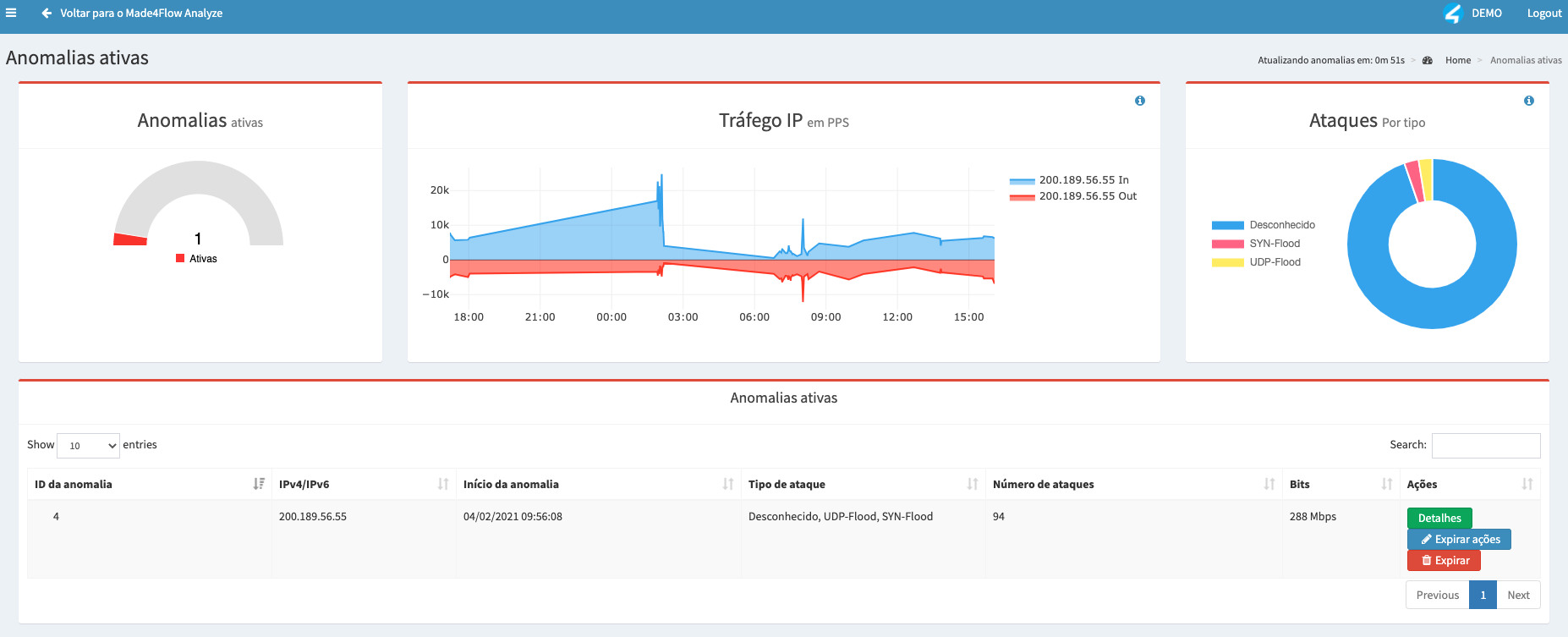
The attacked IP was: 200.189.56.55 (Example)
2) Create a route to blackhole or Null0
After identifying the attacked IP via Made4Flow it is now time to create the route on your Huawei Router to effectively play the IP to Blackhole.
Let’s assume that the attacked IP is 200.200.200.1, let’s create the route as follows

Applied commands:
system-view
ip route-static 200.200.200.1 32 null 0
After applying the route pointing to Null0 this IP will STOP WORKING!
You can check the route using the display command: `
`. If the route is on the Null0 interface, you are already forwarding it to Blackhole.
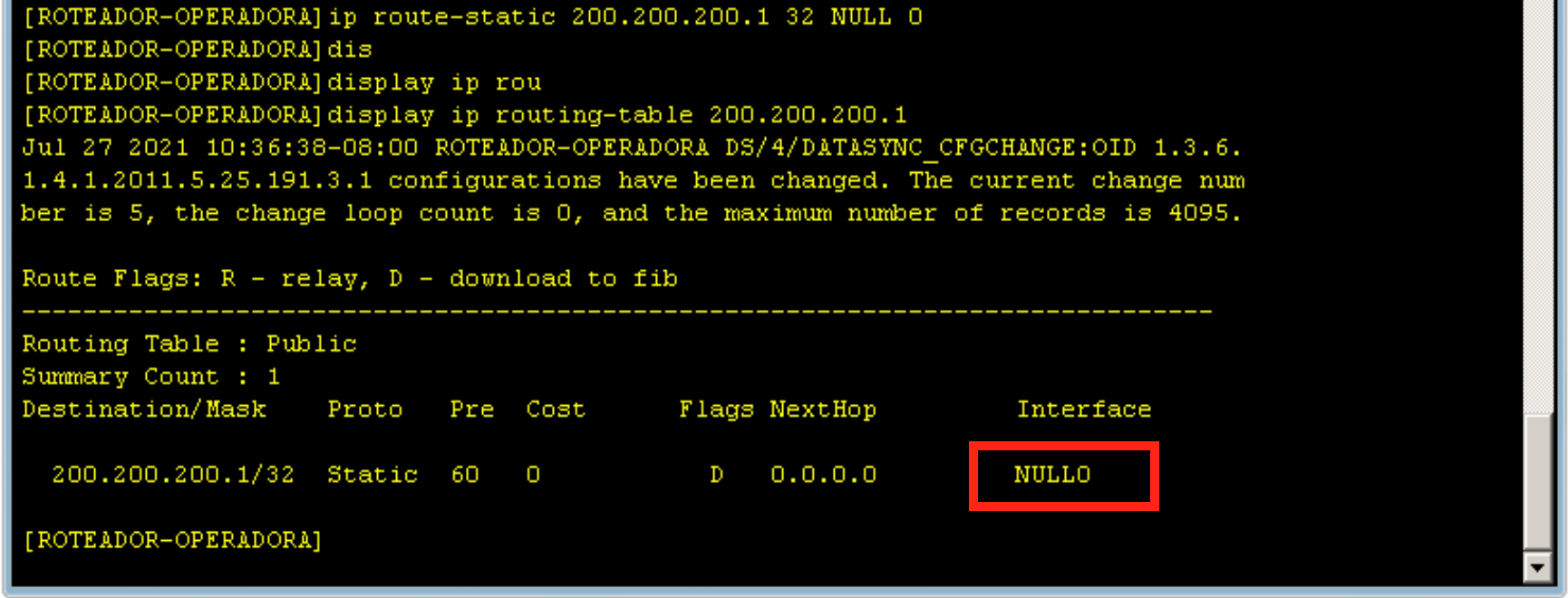
3 – Announce the IP in blackhole via BGP to your operators/upstreams
After identifying and blackhole the route you need to advertise via BGP to your operators/upstreams.
Before configuration, it is always recommended to contact your ISP/upstream provider to find out the Blackhole BGP community.
The BGP session with your ISP must be established!
For this, we have a few steps:
- Create the Network within BGP
To create you must access BGP and create with the network command

Commands:
System-view
bgp 65000
network 200.200.200.1 32
- Configure a prefix-list / ip-prefix with the attacked IP
To configure a route-policy in a simple way to send an IP, you must create an ip-prefix to use within the Route-policy
In our example, where the IP 200.200.200.1/32 is attacked, we will use the following command:

Command: ip ip-prefix ATTACKED-ID permit 200.200.200.1 32
- Configure your Route-Policy to send the attacked IP advertisement
Before configuring the route policy, you must identify which node (sequence) it will be placed in. You must place it in a position that does not have a “deny” rule before it; as a suggestion, I recommend placing it first in the route policy.
To identify the correct name, look at your route-policy and evaluate the number, using the command:
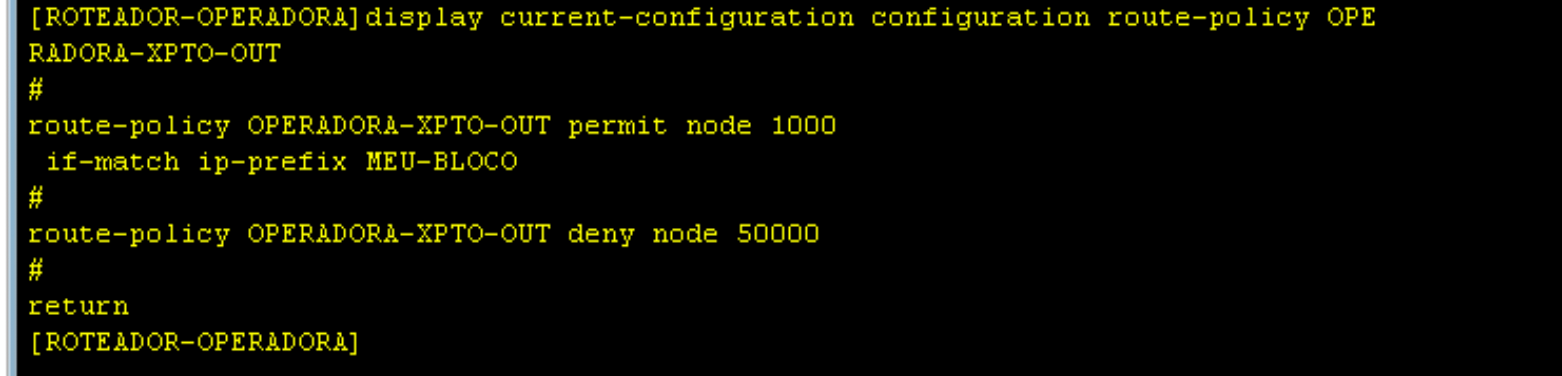
Command: display current-configuration configuration route-policy OPERATORA-XPTO-OUT

In our case it will be the node with a number less than 1000 to be placed before other configurations. The following configuration was made:
Commands:
route-policy OPERADORA-XPTO-OUT permit node 100
if-match ip-prefix IP-ATACADO
apply community 666:666
The if-match commands make the Huawei router check the ip-prefix thus saying that only the IPs within the prefix list will be advertised via BGP. In the apply community command it says to apply the BGP community to the IPs that matched the ip-prefix.
Our XPTO carrier uses community BGP 666:666 to send traffic to Blackhole
Tip: Talk to your operator to find out which BGP blackhole community they use!
Once this is done, the IP will be set to “blackhole” and reported to your ISP; the attack will stop if it is targeting only this single IP.
The complete configuration is as follows:
bgp 65000
#
ipv4-family unicast
undo synchronization
network 200.200.200.0 255.255.252.0
network 200.200.200.1 255.255.255.255
#
route-policy OPERATOR-XPTO-OUT permit node 100
if-match ip-prefix IP-ATTACKED
apply community 666:666
#
route-policy OPERATOR-XPTO-OUT permit node 1000
if-match ip-prefix MY-BLOCK
#
route-policy OPERATOR-XPTO-OUT deny node 50000
#
ip ip-prefix MY-BLOCK index 10 permit 200.200.200.0 22
ip ip-prefix ATTACKED-IP index 10 permit 200.200.200.1 32
#
ip route-static 200.200.200.0 255.255.252.0 NULL0
ip route-static 200.200.200.1 255.255.255.255 NULL0
Automating with Made4Flow
With Made4Flow, you can automate the process of reporting attacked IP addresses to the blackhole.
To do this, we need:
- Configure BGP session between Edge Router and Made4Flow
To configure the BGP session between the Router and Made4Flow, you need to create a route-policy and then the BGP session
To configure the route-policy:
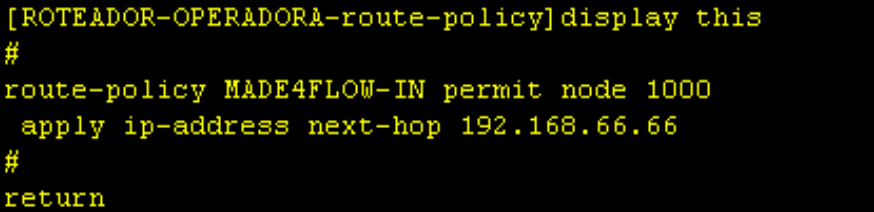
Command: route-policy MADE4FLOW-IN permit node 1000
apply ip-address next-hop 192.168.66.66
In this case it is necessary to add Next-hop manually on the router.
Within Made4Flow, you can already advertise with the correct BGP and Next-hop community if you prefer.
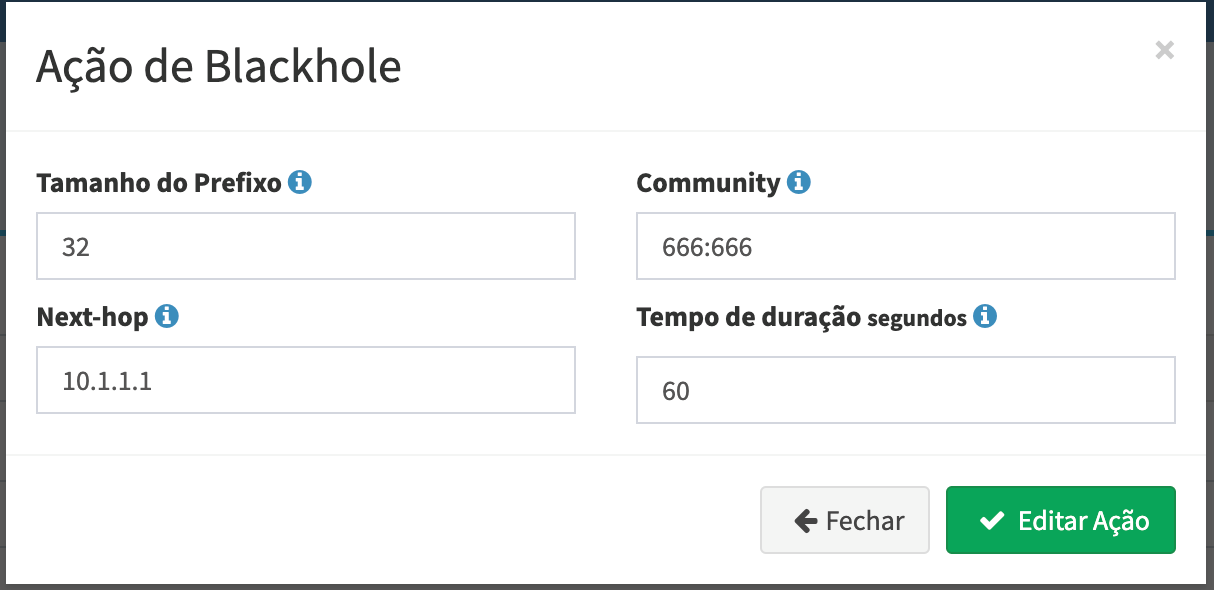
- Configure Made4Flow to send via Actions
Within the Anti-DDoS Module, you can access the menu: Actions and Responses and configure the response to send the Blackhole with the correct BGP community:
- Configure the Router to Send to Carriers
To configure to send to operators/upstreams you need to configure so that the BGP community is identified in the if-match of the outgoing Route-policy.
For this we need to configure an ip community-filter

The next step is to configure your carrier’s or upstream provider’s route policy, similar to how you send the blackhole route, but this time matching it with the community in the `if-match` clause, as shown in our configuration:
To check whether you are sending the advertisement to your carrier, use the following commands:

Check if you receive from Made4Flow
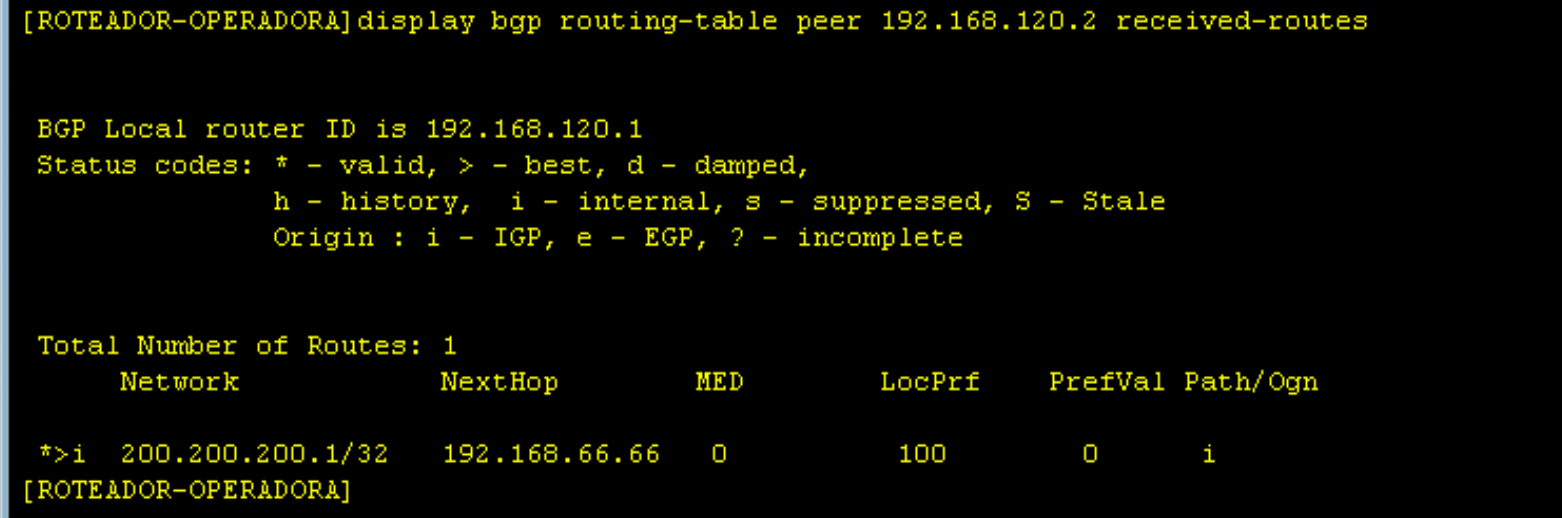
Command: display bgp routing-table peer 192.168.120.2 received-routes
And if you are sending to the operator:
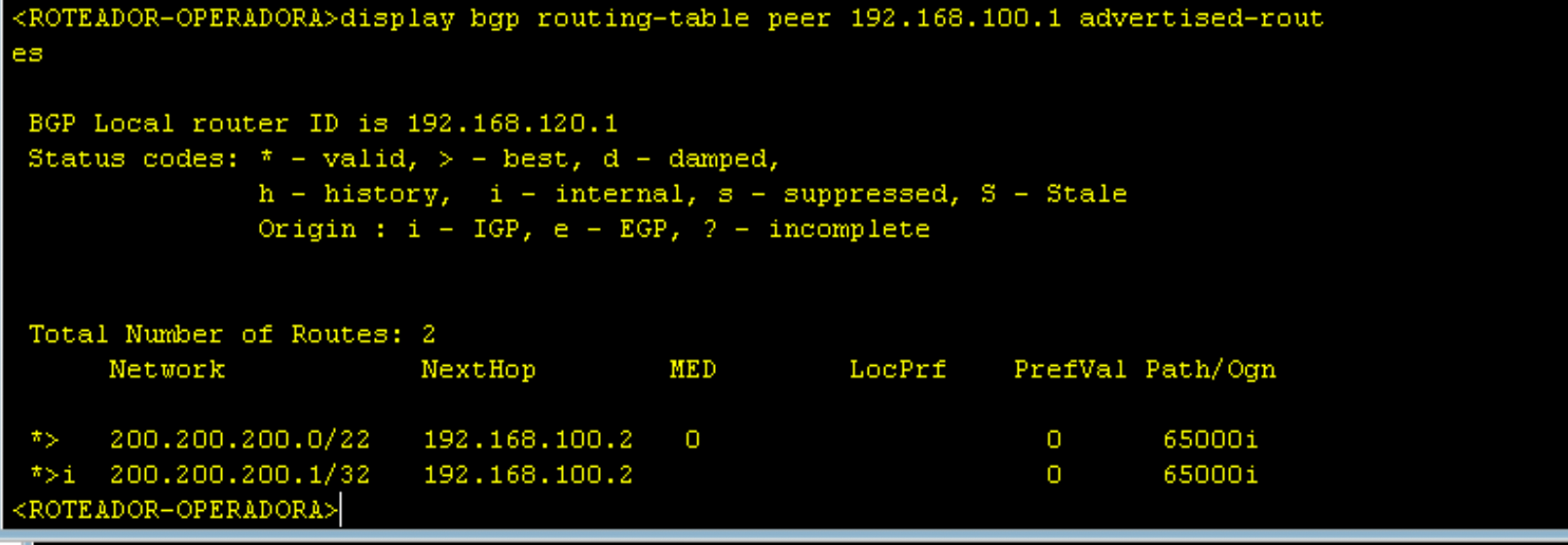
Command: display bgp routing-table peer 192.168.100.1 advertised-route
Having made these settings, the automation of Made4Flow is ready. Upon receiving an attack, Made4Flow can now send this route to Blackhole.
To make it easier, we have the video below, showing in practice how to configure the Huawei Router with Blackhole.
If you have any questions, be sure to contact us via WhatsApp, social media, or email.
See you next time!