


Today I’m going to show you how to set up your Archer-C20 on Made4Graph’s TR-069.
I recommend doing this in a lab environment with a public IP address, since you’ll need to validate the configuration. To do this, we’ll change some settings on your CPE via TR-069, and we don’t want a customer to be left without internet access.
Before starting the configuration, it is essential that there be no “NAT” of any kind on the network between the CPE and the TR-069 server; if there is, it will compromise the functionality of TR-069, according to the protocol documentation.
Now that I’ve covered the prerequisites, let’s configure the CPE.
When you open CPE, go to the Advanced tab, then System Tools, and finally Settings.
When you reach the screen shown below, make the following settings:
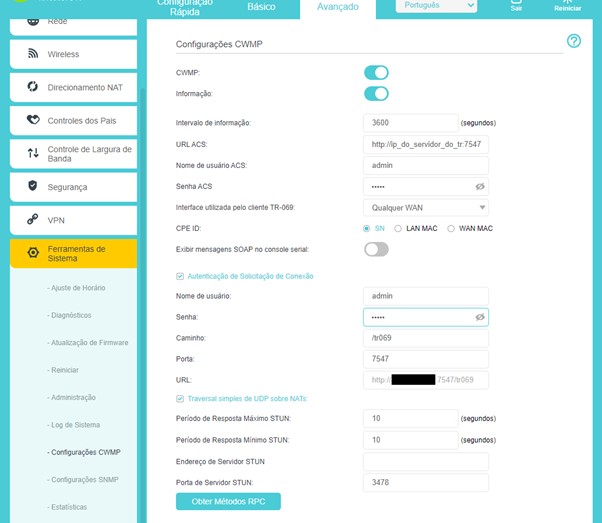
CWMP Settings:
→ The CWMP button must be enabled
→ The information button should be active
→ Data interval = 300
→ ACS URL = http://ip_do_server_de_tr:7547
→ ACS username = admin
→ ACS password = admin
→ Interface used by TR-069 = Any WAN
→ CPE ID = SN
→ “View SOAP Message” button = disabled
→ The “Connection Request Authentication” checkbox must be checked
In the fields below the connection request box, you will be asked for a username and password; you should enter:
→ User = admin
→ Password = admin
→ Path = /tr069
→ Port = 7547
The “Simple UDP Traversal over NATs” option can be enabled, but it does not need to be configured; the settings can be left at their defaults.
After that, click Save.
Shortly thereafter, the CPE should appear in Made4Graph, where it will be approved by our team

Some information has been redacted to keep CPE data confidential.
If you still have questions, send us a message, and we’ll help you with your CPE.