


Hi, how are you? My name is Kevin Wauters. I’m part of the Made4it consulting team, and today I’m going to show you how to configure CGNAT using the script created by the Made4it team.
Script creates deterministic type CGNAT, to better understand and have more information about CGNAT types you can read our previous article
To create the script, first we need to access the page https://www.made4it.com.br/cgnat/, when accessing we have the page:
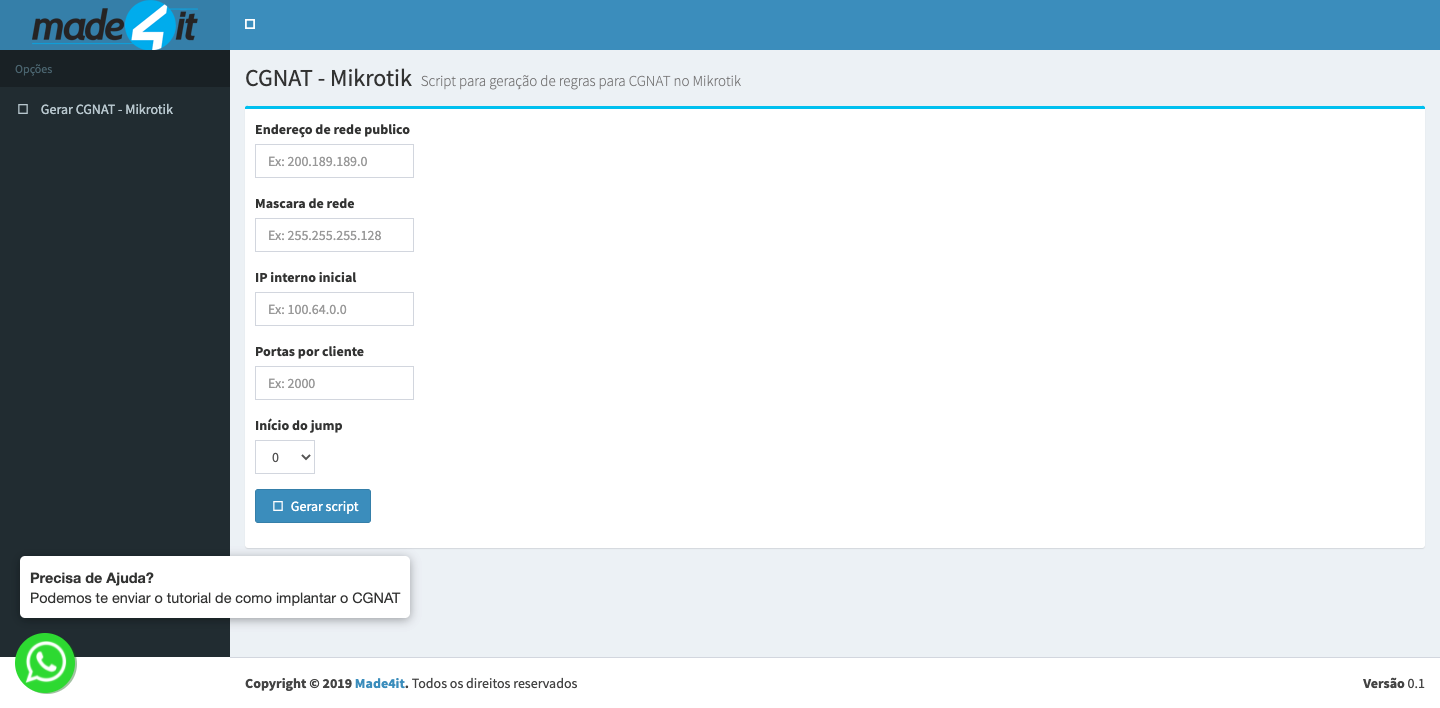
On this page we have some fields to be filled, namely:
- Public network address – Public IP address, which will be used to perform NAT on private IP addresses. For example, let’s use 200.0.0.0
- Netmask – Full netmask of the public IP. For an example, let’s use 255.255.255.252.
- Initial internal IP – Private IP used by clients. For an example, we will use 100.64.0.0
- Ports per client – Number of public IP ports that each private IP can use. For an example, let’s use the value of 4000.
- Start of Jump – Number of the jump rule, if it is a new CGNAT, keep it at 0, change it only in cases of adding more rules in a CGNAT in production. For an example, we will set it up as a new
Filling in the information we will have the page:
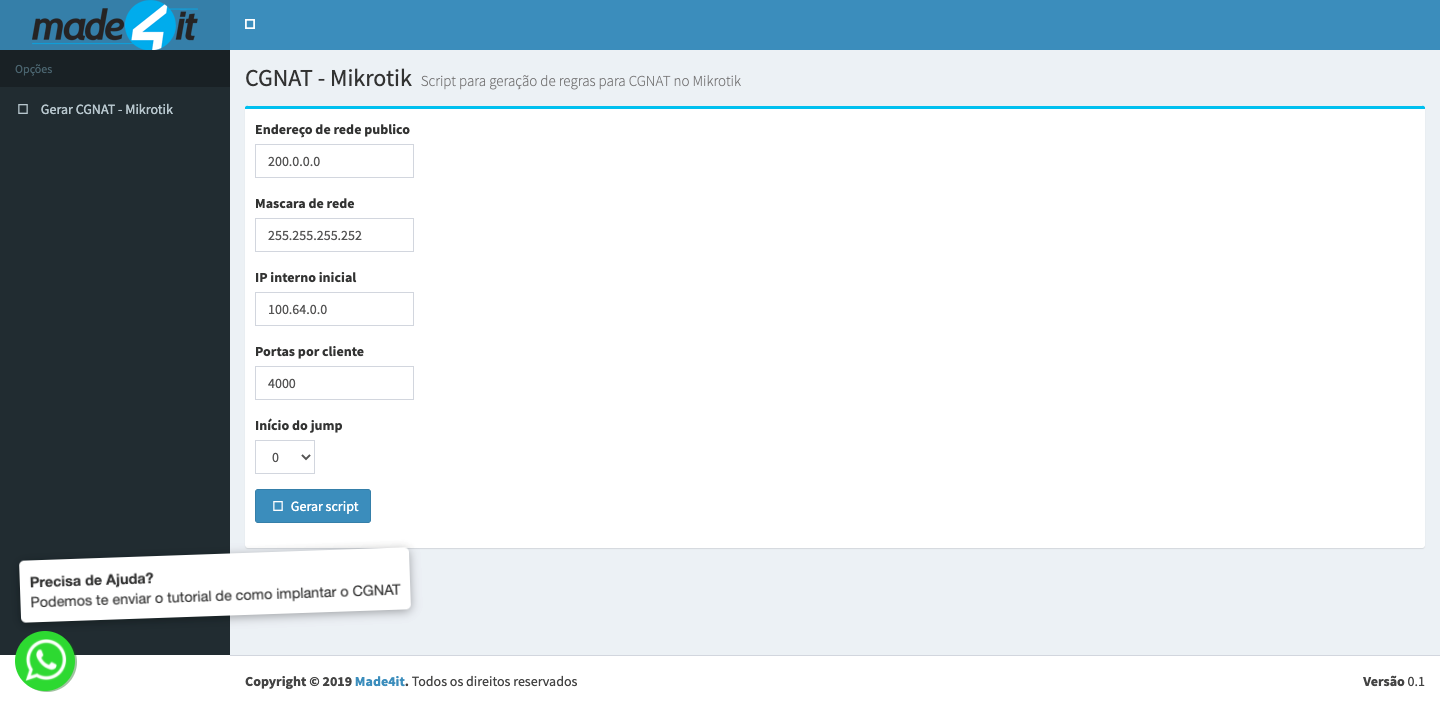
Now just click on the button to generate the CGNAT script and we will have
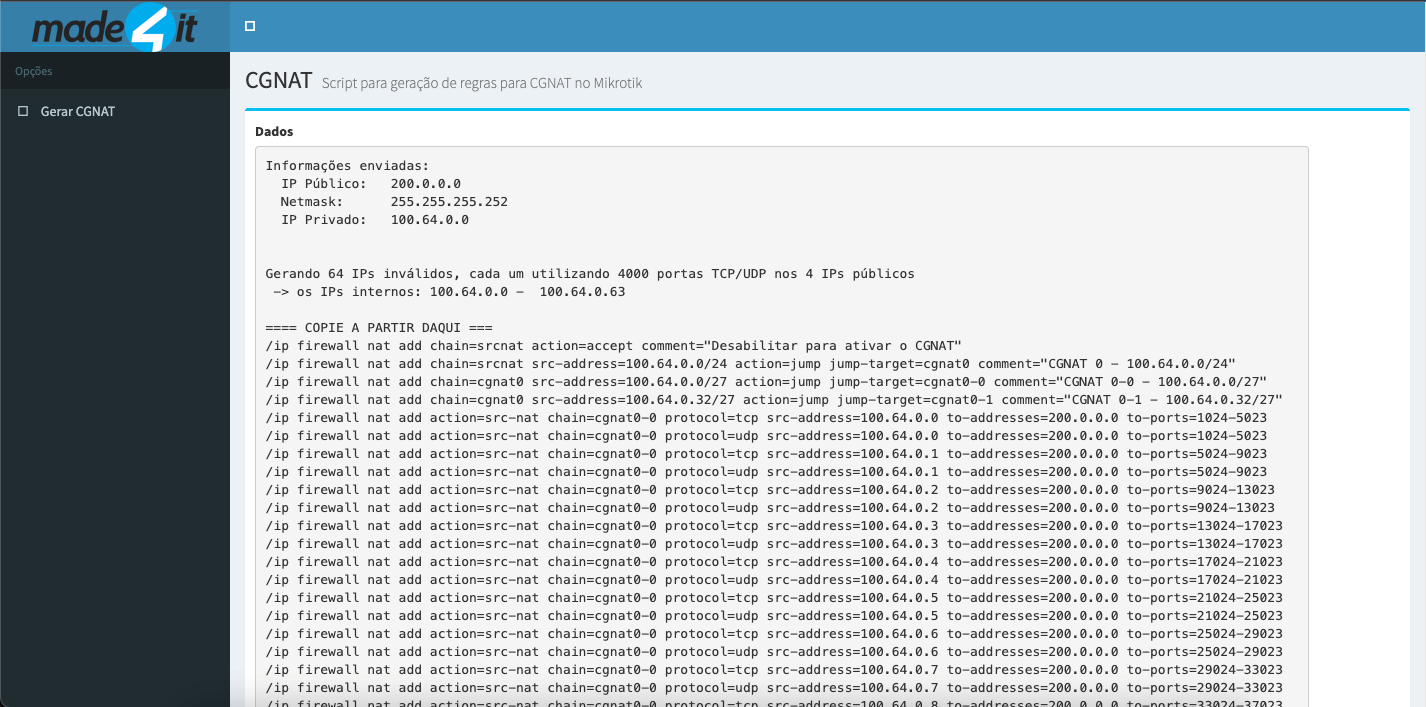
On this page we will have information that we put in to create CGNAT and also information about the rules created by the script.
Now we need to transfer this script to a file by copying the rules below the part indicated with “==== COPY FROM HERE ====” until the end of the page. When pasting in the file, just save it as a .rsc file, for example cgnat.rsc.
Next, we need to UPLOAD this file on the Mikrotik, which will be the equipment used to perform the NAT. To do this, just go to FILES as soon as you log in via WINBOX.
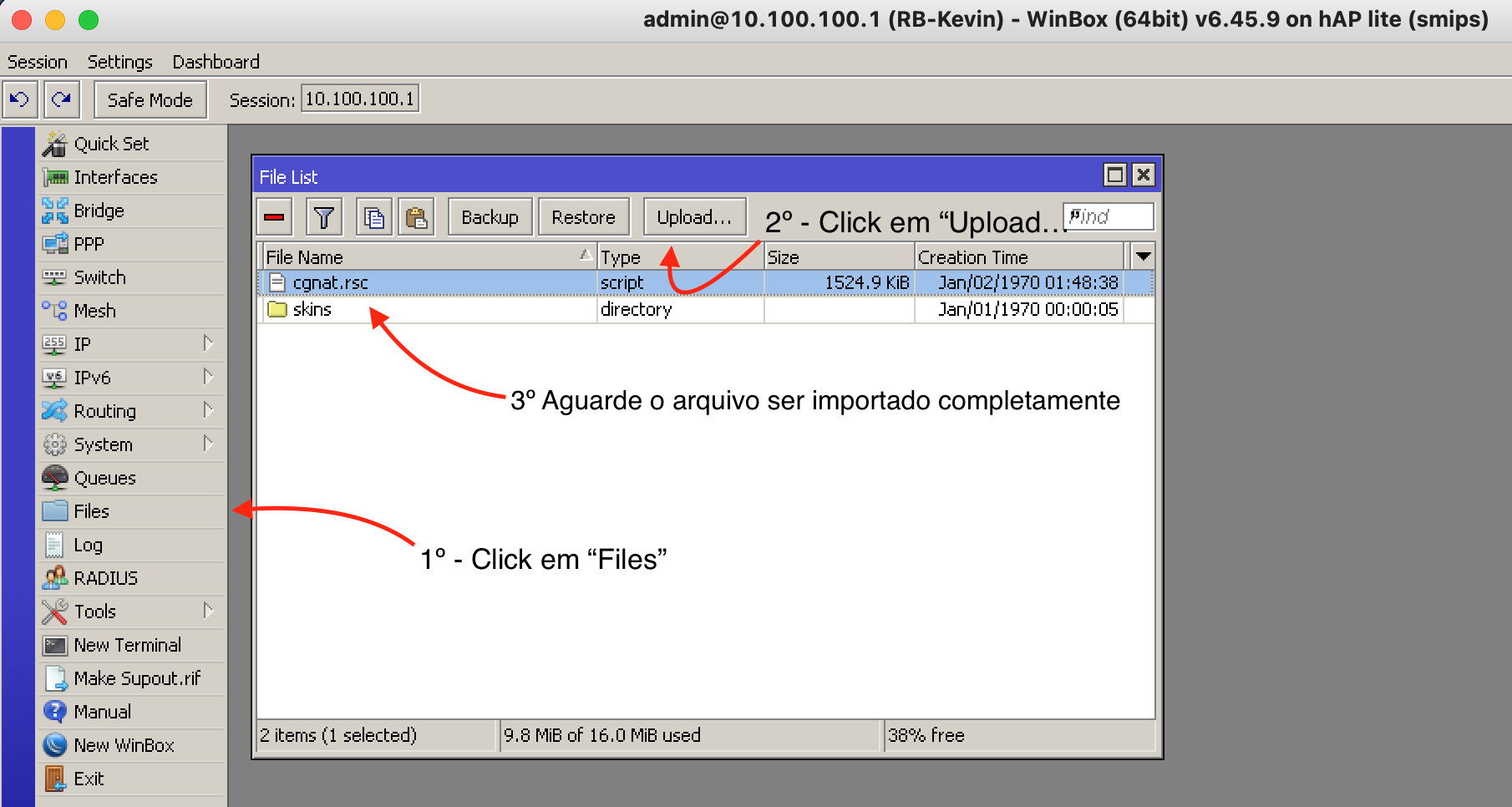
Now that the file is on the Mikrotik, we can read it so that the Mikrotik can create the rules. Just open the terminal and type the command “import file-name=cgnat.rsc” (replace “cgnat.rsc” with the name of the file you uploaded) and press Enter so that Mikrotik creates the rules.
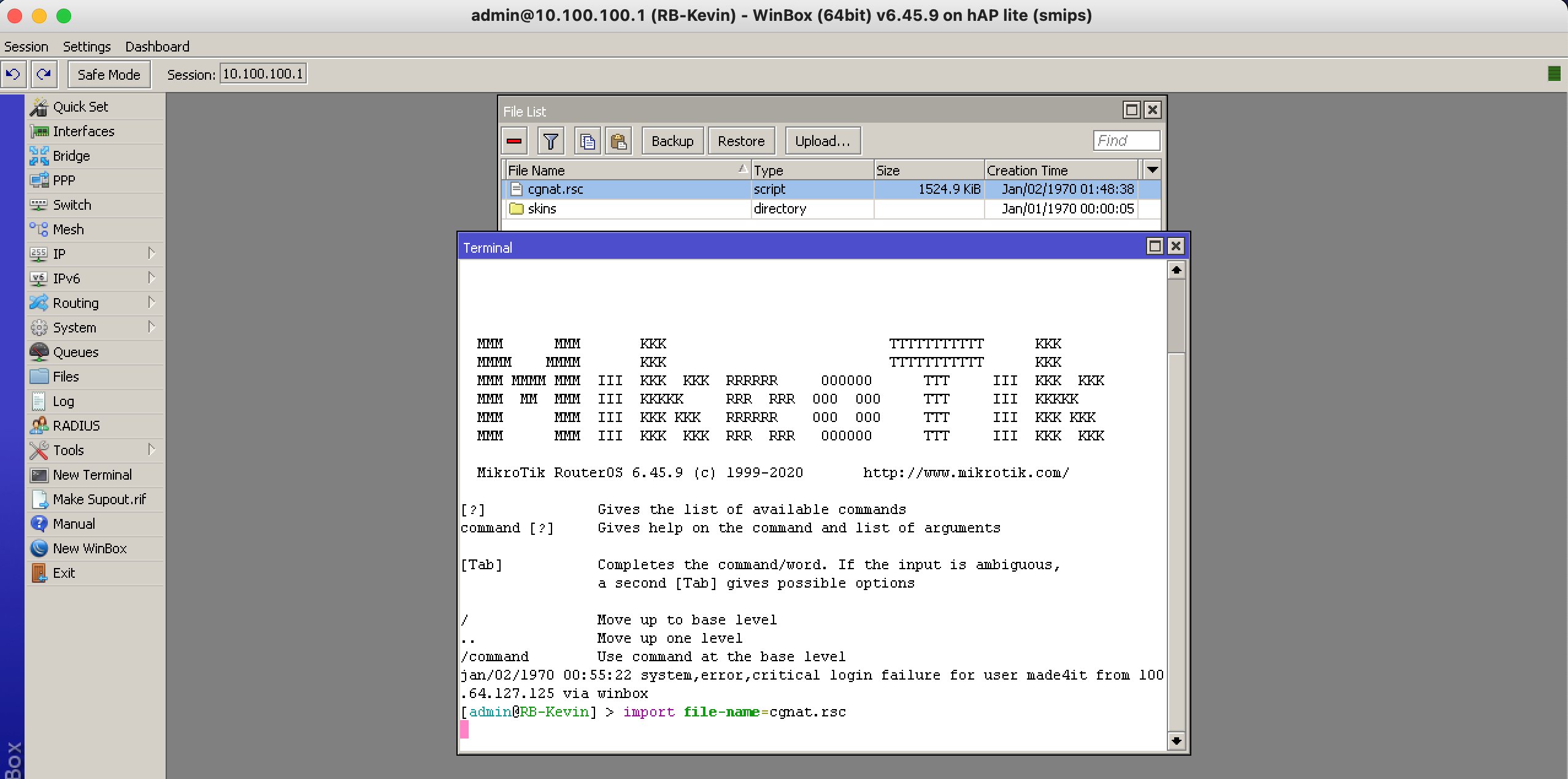
It will appear as if it is loading; wait for the message “Script file loaded and executed successfully.” This indicates that the script has been read in its entirety and the rules have been successfully created. You can view the rules under IP, Firewall, and NAT.
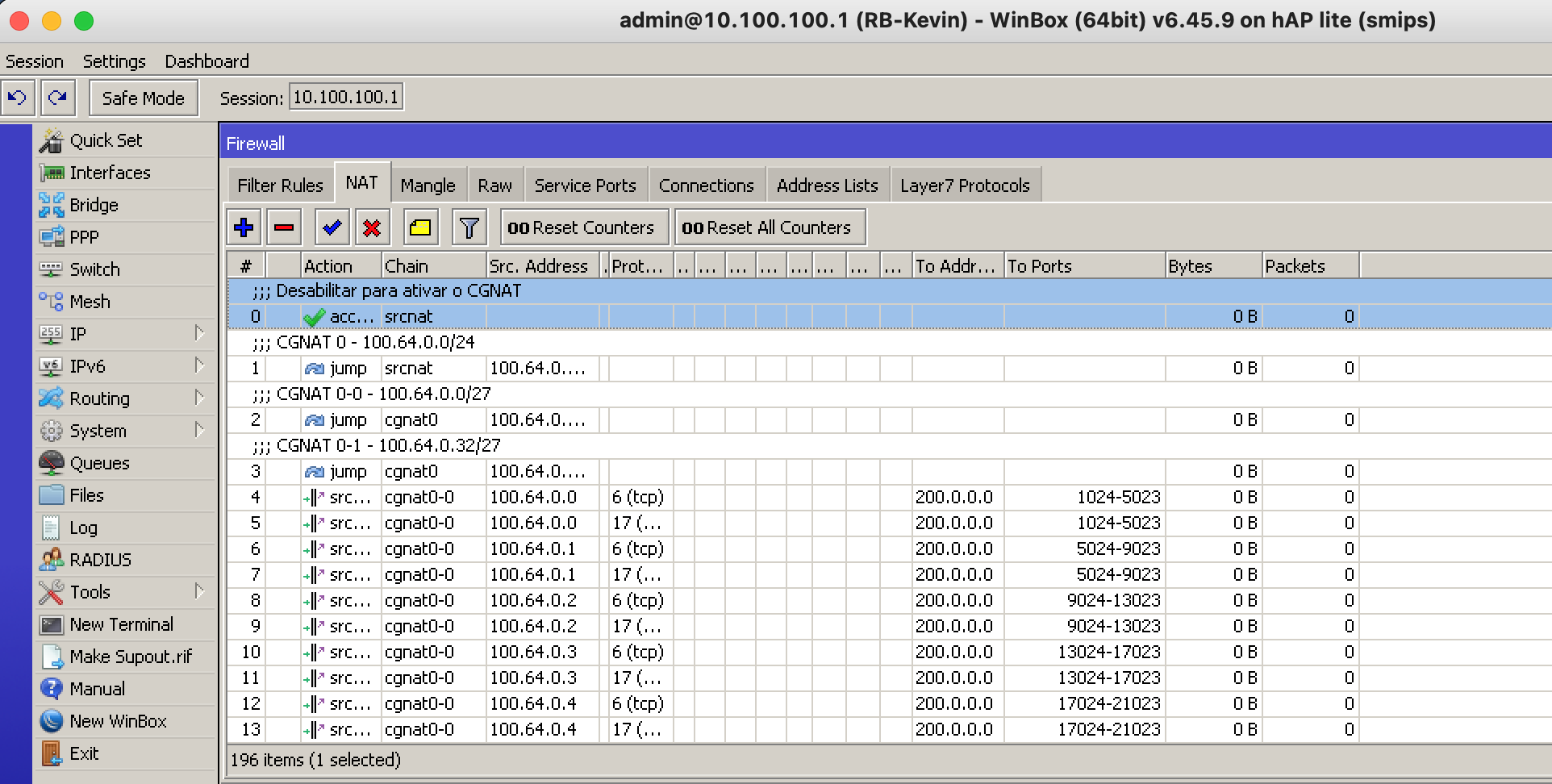
After importing the rules and completing the other CGNAT configurations—such as adjusting the time for stabilized connections, creating blackhole routes for the public blocks used in this CGNAT to prevent loops, and adjusting the routing— so that the CGNAT device has the necessary routes and the network recognizes the address blocks within the CGNAT, then simply redirect clients with IP addresses from 100.64.0.0 to 100.64.0.63 to this CGNAT and disable rule number 0; this will allow them to start browsing.
Andso, once these steps are complete, we will have a functional CGNAT configured.
If you prefer, you can also watch this step-by-step video on our youtube channel.
If you need help creating your CGNAT, you can contact our team via email contato@made4it.com.br or by phone (43) 3047-8340 or (43) 9 8485-4013.