


Today I’m going to show you how to configure your CPE eg8145x6 using Made4Graph’s TR-069.
I recommend that this be done at a workstation using a public IP address, since it will need to be approved. To do this, we’ll update some information in your CPE using the TR-069 form; we don’t want a customer to be left without internet service.
Before beginning the configuration, it is essential that there be no “NAT” of any kind on the network between the CPE and the TR-069 server; if there is, it will compromise TR-069 functionality, as stated in the protocol documentation.
Now that I’ve completed the prerequisites, let’s set up the CPE.
When accessing the CPE, go to the Configuration tab —> System Management—and then select TR 069.
When you reach the screen shown below, we will make the following settings:
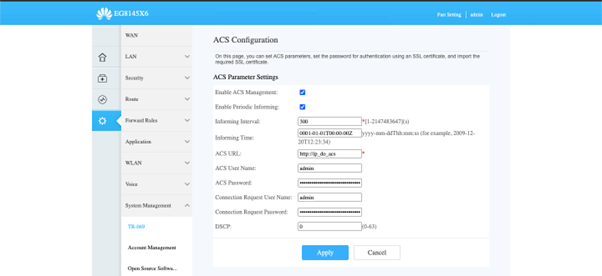
CWMP Settings:
→ The “Enable ACS Management” checkbox must be checked
→ The “Enable Periodic Informing” checkbox must be checked
→ Informing interval = 300
→ ACS URL = http://ip_do_acs:7547
→ ACS username = admin
→ ACS password = admin
→ Connection request username = admin
→ Connection request password = admin
After that, click Apply.