Apple released its new version of the macOS operating system, codenamed Catalina, on October 7.
With this new version, some features that work correctly in other versions have stopped working in this one; one of these is our friend Winbox from Mikrotik. In this new version, 32-bit applications are no longer supported, and since Wine is one of the essential components for running Winbox on macOS, we need to run the 64-bit version.
To help you, let’s follow the tutorial below.
1. Back up your Address using Winbox or by copying the files from Wine
Using the terminal (or an app like iTerm), rename your `.wine` directory using the following commands:
, `cd ~`, `
`, `mv .wine .wine-backup`

2. Delete the old Wine data
Use the following commands:rm -rf /Applications/Wine*
rm -rf ~/.wine/
3. Download and install the latest version of Wine
Download the Wine Staging version from the following URL: https://dl.winehq.org/wine-builds/macosx/pool/winehq-staging-4.18.pkg
Install it on your macOS as usual.
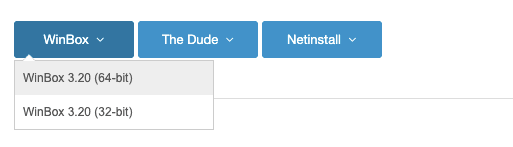
4. Download the 64-bit version of Winbox
To download, visit the Mikrotik website and go to the Downloads tab, or use this link: https://download.mikrotik.com/winbox/3.20/winbox64.exe
5. Run Wine64 with Winbox64
To run wine64 with Winbox64, use the following script:
/bin/zsh
export PATH="/Applications/Wine Staging.app/Contents/Resources/wine/bin:$PATH"
export FREETYPE_PROPERTIES="truetype:interpreter-version=35"
export DYLD_FALLBACK_LIBRARY_PATH="/usr/lib:/opt/X11/lib:$DYLD_FALLBACK_LIBRARY_PATH"
wine64 ~/Downloads/winbox64.exe > /dev/null 2>&1 &
To make things easier, you can run a script to execute these commands automatically.
Use the following commands: vi inicia-mikrotik
!/bin/zsh
export PATH="/Applications/Wine Staging.app/Contents/Resources/wine/bin:$PATH"
export FREETYPE_PROPERTIES="truetype:interpreter-version=35"
export DYLD_FALLBACK_LIBRARY_PATH="/usr/lib:/opt/X11/lib:$DYLD_FALLBACK_LIBRARY_PATH"
wine64 ~/Downloads/winbox64.exe > /dev/null 2>&1 &Exit and save the file with :wq!
Set the file’s executable permission: chmod +x inicia-mikrotik
And run the script with the command: ./inicia-mikrotik or ~/inicia-mikrotik
To summarize, I’ll list all the commands used here
cd ~
mv .wine .wine-backup
rm -rf /Applications/Wine*
rm -rf ~/.wine/
https://dl.winehq.org/wine-builds/macosx/pool/winehq-staging-4.18.pkg
https://download.mikrotik.com/winbox/3.20/winbox64.exe
/bin/zsh
export PATH="/Applications/Wine Staging.app/Contents/Resources/wine/bin:$PATH"
export FREETYPE_PROPERTIES="truetype:interpreter-version=35"
export DYLD_FALLBACK_LIBRARY_PATH="/usr/lib:/opt/X11/lib:$DYLD_FALLBACK_LIBRARY_PATH"
wine64 ~/Downloads/winbox64.exe > /dev/null 2>&1 &
vi inicia-mikrotik
!/bin/zsh
export PATH="/Applications/Wine Staging.app/Contents/Resources/wine/bin:$PATH"
export FREETYPE_PROPERTIES="truetype:interpreter-version=35"
export DYLD_FALLBACK_LIBRARY_PATH="/usr/lib:/opt/X11/lib:$DYLD_FALLBACK_LIBRARY_PATH"
wine64 ~/Downloads/winbox64.exe > /dev/null 2>&1 &
chmod +x inicia-mikrotik
./inicia-mikrotik ou ~/inicia-mikrotik
If you have any questions, please contact us:
Email: noc@made4it.com.br
WhatsApp: +5543984854013
Phone: +55 43 30478300
Warm regards, and see you next time.
References: https://forum.mikrotik.com/viewtopic.php?t=152795