

Hello
Today we’ll show you how to configure your Juniper router to export NetFlow (jFlow). At the end of the article, you’ll find the configuration using IPFIX (NetFlow v10).
Here we have the Network topology and the Netflow Server information
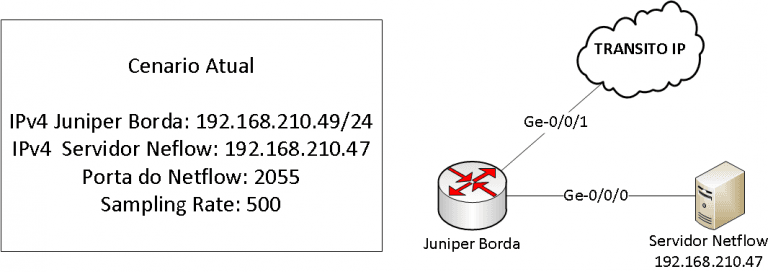
These are the steps needed to configure a Juniper Router to export Netflow v5
- Configure the NTP Server
- Configuring Forwarding Options with Sampling Rate
- Configure the Host that will receive the Flows coming from the Router
- Configure the interface to enable Netflow on the interface
Let’s go to the step-by-step configuration
1. Configure the NTP Server
It is important to configure an NTP Server because the Flows data uses timestamp according to the router’s time. If the router has a different time than the server, the data will not agree with the time, generating a mismatch of information.
It is important that you configure at least 2 NTP servers and also your router’s timezone.
## Utilizando os Servidores do a.ntp.br e b.ntp.br
set system ntp server 200.160.0.8
set system ntp server 200.189.40.8

## Configurando o Time-Zone
set system time-zone America/Sao_Paulo

## Forma padrão de visualizar a configuração do Juniper
guilherme@vMX-BGP> show configuration system
system {
 time-zone America/Sao_Paulo;


 ntp {
     server 200.160.0.8;
     server 200.189.40.8;
 }
}
2. Configure Forwarding Options with the Sampling Rate
The sampling rate is used to prevent CPU overload in your Routing Engine; it creates a sample of the traffic and exports it, allowing the NetFlow system to receive the data and apply a multiplication factor so that the data reflects actual numbers.
To configure this, use the commands. The ideal rate value depends on how much traffic you use; a good tip is to use values above 200 and monitor your router’s CPU usage.
## Aplicando o valor de Rate em 500
set forwarding-options sampling input rate 500

## Forma de visualização do Juniper sem display-set
forwarding-options {
     sampling {
         input {
             rate 500;
         }
3. Configure the Host that will receive the Flows coming from the Router
To configure your router to export NetFlow, you must specify the IP address of the server that will receive the flows and the UDP port on which it will receive this traffic.
To do this, use the following commands:
## Exportando para o IP 192.168.210.47 na porta 2055 e utilizando a versão 5 do netflow
set forwarding-options sampling family inet output flow-server 192.168.210.47 port 2055
 set forwarding-options sampling family inet output flow-server 192.168.210.47 version 5

## Visualização do Show sem display set
guilherme@vMX-BGP> show configuration forwarding-options
 sampling {
     family inet {
         output {
             flow-server 192.168.210.47 {
                 port 2055;
                 version 5;
             }
         }
     }
 }
4. Configure the interface to enable Netflow on the interface
After configuring the sampling rate and the flow server, you still need to enable NetFlow on the interfaces from which it will generate data. Keep in mind that you must configure this command within each unit.
To do this, configure the interfaces within each unit using the following command:
### Aplicar o comando sampling input
 set interfaces ge-0/0/1 unit 0 family inet sampling input
The complete configuration looks like this:
guilherme@vMX-BGP> show configuration | display set
 set system time-zone America/Sao_Paulo
 set system ntp server 200.160.0.8
 set system ntp server 200.189.40.8

set interfaces ge-0/0/0 description "Fala com o Netflow"
 set interfaces ge-0/0/0 unit 0 family inet address 192.168.210.49/24

set interfaces ge-0/0/1 description "INTERFACE WAN - TRANSITO IP"
 set interfaces ge-0/0/1 unit 0 family inet sampling input
 set interfaces ge-0/0/1 unit 0 family inet address 200.200.200.1/30

set forwarding-options sampling input rate 500
 set forwarding-options sampling family inet output flow-server 192.168.210.47 port 2055
 set forwarding-options sampling family inet output flow-server 192.168.210.47 version 5


## Forma de show do Juniper
guilherme@vMX-BGP> show configuration
 Last commit: 2019-01-30 13:30:01 BRST by guilherme
 version 17.1R2.7;
 system {
     host-name vMX-BGP;
     time-zone America/Sao_Paulo;
     ntp {
         server 200.160.0.8;
         server 200.189.40.8;
     }
 }
 interfaces {
     ge-0/0/0 {
         description "Fala com o Netflow";
         unit 0 {
             family inet {
                 address 192.168.210.49/24;
             }
         }
     }
     ge-0/0/1 {
         description "INTERFACE WAN - TRANSITO IP";
         unit 0 {
             family inet {
                 sampling {
                     input;
                 }
                 address 200.200.200.1/30;
             }
         }
     }
 }
 forwarding-options {
     sampling {
         input {
             rate 500;
         }
         family inet {
             output {
                 flow-server 192.168.210.47 {
                     port 2055;
                     version 5;
                 }
             }
         }
     }
 }
To make things even easier, we have a video demonstrating how to configure each command covered in this tutorial
As a bonus, we’ll post the IPFIX configurations for a few types of routers
Juniper MX204
For routers such as the MX204, you can use IPFIX (NetFlow v10). To configure this on the MX204, use the commands and modify the Flow-server and source address IPs.
 set services flow-monitoring version-ipfix template MADE4FLOW flow-active-timeout 60
 set services flow-monitoring version-ipfix template MADE4FLOW flow-inactive-timeout 15
 set services flow-monitoring version-ipfix template MADE4FLOW template-refresh-rate seconds 30
 set services flow-monitoring version-ipfix template MADE4FLOW option-refresh-rate seconds 30
 set services flow-monitoring version-ipfix template MADE4FLOW ipv4-template
 set services flow-monitoring version-ipfix template MADE4FLOW-v6 flow-active-timeout 60
 set services flow-monitoring version-ipfix template MADE4FLOW-v6 flow-inactive-timeout 15
 set services flow-monitoring version-ipfix template MADE4FLOW-v6 template-refresh-rate seconds 30
 set services flow-monitoring version-ipfix template MADE4FLOW-v6 option-refresh-rate seconds 30
 set services flow-monitoring version-ipfix template MADE4FLOW-v6 ipv6-template
 set chassis fpc 0 sampling-instance MADE4FLOW
 set chassis fpc 0 inline-services flow-table-size ipv4-flow-table-size 10
 set chassis fpc 0 inline-services flow-table-size ipv6-flow-table-size 5
 set forwarding-options sampling instance MADE4FLOW input rate 1000
 set forwarding-options sampling instance MADE4FLOW input run-length 0
 set forwarding-options sampling instance MADE4FLOW input max-packets-per-second 10000
 set forwarding-options sampling instance MADE4FLOW family inet output flow-inactive-timeout 15
 set forwarding-options sampling instance MADE4FLOW family inet output flow-active-timeout 60
 set forwarding-options sampling instance MADE4FLOW family inet output flow-server 10.1.1.1 port 2055
 set forwarding-options sampling instance MADE4FLOW family inet output flow-server 10.1.1.1 autonomous-system-type origin
 set forwarding-options sampling instance MADE4FLOW family inet output flow-server 10.1.1.1 version-ipfix template MADE4FLOW
 set forwarding-options sampling instance MADE4FLOW family inet output inline-jflow source-address 10.1.1.2
 set forwarding-options sampling instance MADE4FLOW family inet6 output flow-inactive-timeout 15
 set forwarding-options sampling instance MADE4FLOW family inet6 output flow-active-timeout 60
 set forwarding-options sampling instance MADE4FLOW family inet6 output flow-server 10.1.1.1 port 2055
 set forwarding-options sampling instance MADE4FLOW family inet6 output flow-server 10.1.1.1 autonomous-system-type origin
 set forwarding-options sampling instance MADE4FLOW family inet6 output flow-server 10.1.1.1 version-ipfix template MADE4FLOW-v6
 set forwarding-options sampling instance MADE4FLOW family inet6 output inline-jflow source-address 10.1.1.2

### Em cada interface e cada unit adicionar os comandos
 set interfaces xe-2/0/0 unit 151 family inet sampling input
 set interfaces xe-2/0/0 unit 151 family inet6 sampling input
Juniper MX104
To configure the Juniper MX104 use the commands below. Remember that MX104 only supports exporting to 1 Netflow Server with IPFIX.
 set services flow-monitoring version-ipfix template MADE4FLOW flow-active-timeout 60
 set services flow-monitoring version-ipfix template MADE4FLOW flow-inactive-timeout 30
 set services flow-monitoring version-ipfix template MADE4FLOW template-refresh-rate seconds 30
 set services flow-monitoring version-ipfix template MADE4FLOW option-refresh-rate seconds 30
 set services flow-monitoring version-ipfix template MADE4FLOW ipv4-template
 set services flow-monitoring version-ipfix template MADE4FLOW-v6 flow-active-timeout 60
 set services flow-monitoring version-ipfix template MADE4FLOW-v6 flow-inactive-timeout 30
 set services flow-monitoring version-ipfix template MADE4FLOW-v6 template-refresh-rate seconds 30
 set services flow-monitoring version-ipfix template MADE4FLOW-v6 option-refresh-rate seconds 30
 set services flow-monitoring version-ipfix template MADE4FLOW-v6 ipv6-template
 set forwarding-options sampling instance MADE4FLOW input rate 500
 set forwarding-options sampling instance MADE4FLOW input run-length 0
 set forwarding-options sampling instance MADE4FLOW family inet output flow-inactive-timeout 15
 set forwarding-options sampling instance MADE4FLOW family inet output flow-active-timeout 60
 set forwarding-options sampling instance MADE4FLOW family inet output flow-server 10.1.1.1 port 2055
 set forwarding-options sampling instance MADE4FLOW family inet output flow-server 10.1.1.1 version-ipfix template MADE4FLOW
 set forwarding-options sampling instance MADE4FLOW family inet output inline-jflow source-address 10.1.1.2
 set forwarding-options sampling instance MADE4FLOW family inet6 output flow-inactive-timeout 15
 set forwarding-options sampling instance MADE4FLOW family inet6 output flow-active-timeout 60
 set forwarding-options sampling instance MADE4FLOW family inet6 output flow-server 10.1.1.1 port 2055
 set forwarding-options sampling instance MADE4FLOW family inet6 output flow-server 10.1.1.1 version-ipfix template MADE4FLOW-v6
 set forwarding-options sampling instance MADE4FLOW family inet6 output inline-jflow source-address 10.1.1.2
 set chassis afeb slot 0 sampling-instance MADE4FLOW

 ## Em cada interface do seu roteador utilizar os comandos
 set interfaces xe-2/0/0 unit 151 family inet sampling input
 set interfaces xe-2/0/0 unit 151 family inet6 sampling input
If you have a router that isn’t listed here, please send an email to comercial@made4it.com.br, and we’ll send you the settings.
I hope this helped, and see you next time.
Best regards.